
The Quick Answer
This guide compares four recording tools for Windows, then walks you through setting up Outplayed. Start with what you want to capture and how you want to use the recording.
- For live streaming, scenes and production controls, choose OBS Studio
- For occasional manual recordings without an extra capture app, try Xbox Game Bar, which is included in Windows
- For high-resolution recording on compatible NVIDIA hardware, consider ShadowPlay, available through the NVIDIA App
- For automatic highlights in supported games, with editing and sharing in the same app, choose Outplayed
What Automatic Capture Means
Background recording keeps footage while you play. A manual replay buffer lets you save a recent stretch of that footage when you press a hotkey.
Automatic highlights remove the need to press that hotkey for supported moments. Outplayed uses game-event data through the Overwolf client to detect events such as a spike defuse in VALORANT and save a clip around them.
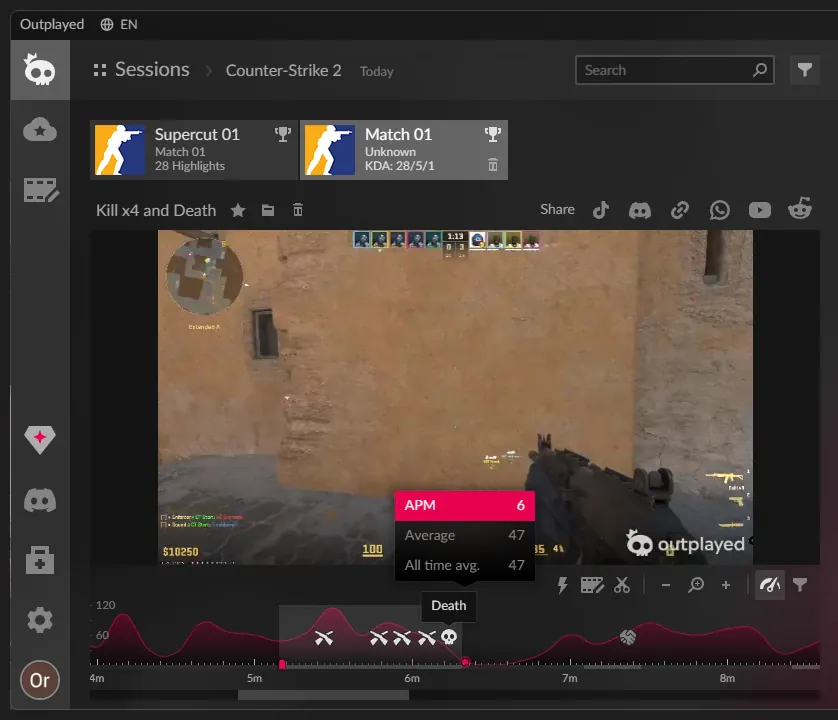
Automatic-highlight support varies by game. Check which events your game supports before choosing a capture mode.
Automatic capture is not unique to Outplayed. NVIDIA Highlights also captures supported moments automatically. Compare support for the games you play, along with the editing and sharing tools you want to use.
Setting Up Outplayed
Follow these steps to get started
Install Outplayed
Install Outplayed with the Overwolf client on a compatible Windows PC. Outplayed supports hardware encoding on compatible NVIDIA, AMD and Intel GPUs.
Check Your Game and Choose a Capture Mode
Open your game’s page to check its supported highlights and recording options. In Outplayed, open Settings, select Games, enable your game and choose an available capture mode.
Choose Highlights for supported automatic clips. If automatic highlights are unavailable, use another available mode, such as Full Session or Manual capture.
Play
Outplayed records according to your selected capture mode. In Highlights mode, supported events trigger clips automatically, without a hotkey.
Trim and Share
Review your recording, select the moment you want to keep and trim your clip. Use Outplayed’s built-in sharing options for TikTok, Discord, WhatsApp, YouTube or Reddit.
See What Your Game Supports
Check the available recording modes and automatic highlights for your game
All Four Compared
Compare capture, editing and sharing features to find the tools that fit the way you play
| Feature | Outplayed | NVIDIA ShadowPlay | OBS Studio | Xbox Game Bar |
|---|---|---|---|---|
| Automatic highlight capture | Yes, in supported games; check the per-game event list | Yes, via NVIDIA Highlights in supported games | No native game-event clipping; manual replay buffer | No; recent footage is saved manually |
| AMD and Intel support | Yes, on compatible hardware | NVIDIA hardware required | Yes, on compatible hardware | Yes, on compatible hardware |
| Installation | Outplayed with the Overwolf client | Included in the NVIDIA App | Install OBS Studio | Included in Windows |
| Built-in editor | Trim, merge, crop, montage | None | None | No built-in editor; trimming through a separate Windows app |
| Share without exporting | TikTok, Discord, WhatsApp, YouTube, Reddit | Files only | Files only | Files only |
| Live streaming and scene composition | No | No | Yes | No |
| macOS and Linux | No | No | Yes | No |
| Recording quality and controls | Up to 4K at 60 fps | Includes 8K HDR at 30 fps and 4K HDR at 120 fps, depending on hardware and settings | Full encoder control | Varies by Windows version and settings |
| Ads | Yes on the free plan | None | None | None |
| Price | Free, optional Premium | Free with compatible hardware | Free and open source | Free with Windows |
Comparison based on documentation checked 15 October 2026, with corrections incorporated into this draft
Read the full comparisons: Outplayed vs NVIDIA ShadowPlay · Outplayed vs OBS Studio · Outplayed vs Xbox Game Bar
Choosing a Buffer Length
If you use manual replay capture, choose enough time to include the build-up and the moment itself. These ranges are starting points, depending on the options available in your recorder:
- 15 to 30 seconds for a short moment, such as a single kill
- 1 to 2 minutes when you want more of the build-up
- 5 to 10 minutes for a longer sequence you can trim afterwards
Outplayed’s manual replay capture ranges from 15 seconds to 10 minutes. ShadowPlay’s Instant Replay duration is configurable, as are the replay settings in OBS and Game Bar.
Longer saved clips take more storage. Resource use depends on the recorder, your hardware and the recording settings.